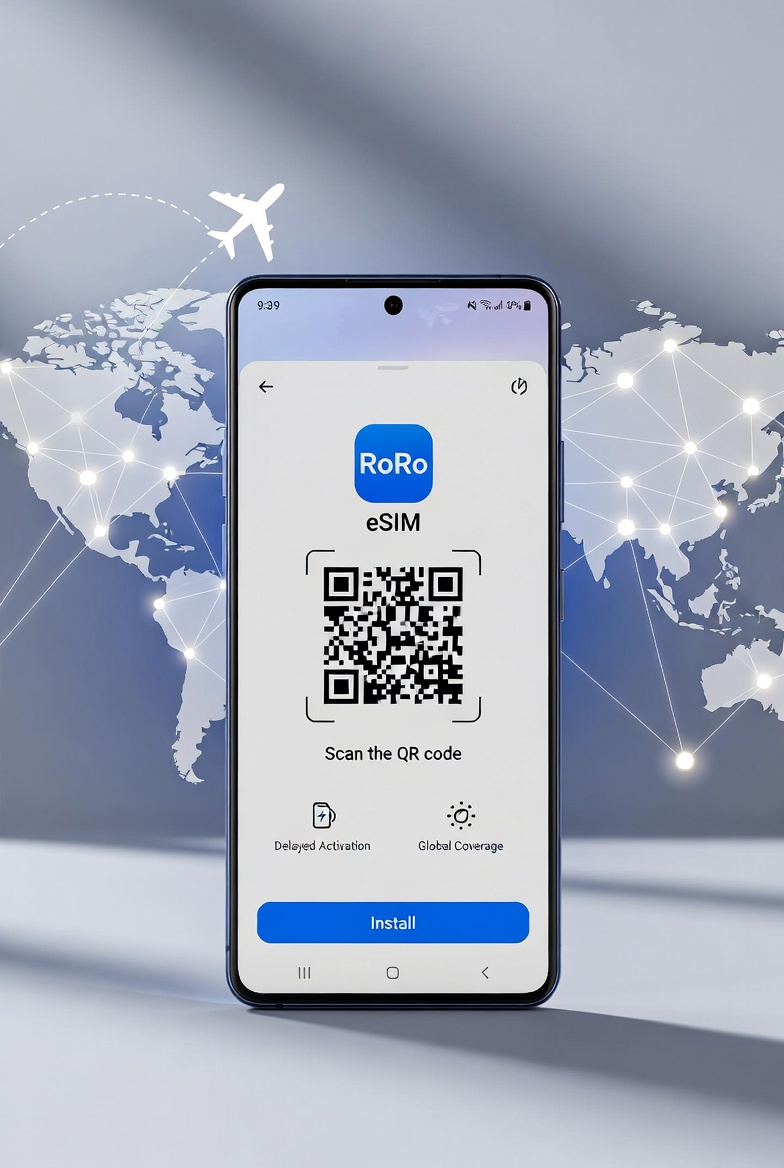
The Samsung Galaxy S24 and S24 Ultra are excellent choices for travelers thanks to their full eSIM support and powerful features. If you’re planning to use RoRo eSIM (https://roroesim.com/) for international travel, setting it up on your Galaxy S24 series phone is quick and straightforward. This guide will walk you through the entire process so you can enjoy reliable data from the moment you arrive at your destination.Before You Begin
- Make sure your Galaxy S24 or S24 Ultra is unlocked (carrier-unlocked).
- Have a stable Wi-Fi connection ready.
- Purchase your RoRo plan in advance at https://roroesim.com/. You will receive a QR code and manual activation details immediately after payment.
- Purchase and Prepare RoRo eSIM
Log in to your RoRo account or check your email for the QR code. Keep the QR code ready on another device or screen. - Open eSIM Settings
On your Galaxy S24 / S24 Ultra:- Go to Settings > Connections > SIM Manager (or Mobile Networks).
- Tap Add eSIM or Download a SIM.
- Scan the QR Code
- Select Scan QR code.
- Point your phone’s camera at the RoRo QR code.
- The phone will automatically detect and download the eSIM profile.
- If scanning fails, choose Enter activation code manually and input the SM-DP+ address and activation code provided by RoRo.
- Complete the Installation
- Follow the on-screen prompts to download and add the profile.
- Once installed, rename the eSIM for easy identification (e.g., “RoRo France”, “RoRo Thailand”, or “RoRo USA”).
- Do not turn it on yet if you want to use delayed activation.
- Activate Upon Arrival
When you land at your destination:- Go back to SIM Manager.
- Select the RoRo eSIM.
- Toggle it On.
- Turn on Data Roaming (very important for RoRo to connect to local partner networks).
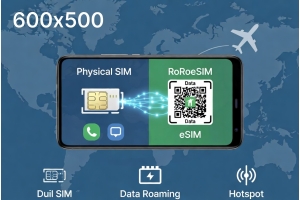
- Set RoRo eSIM as your Mobile Data line while keeping your physical SIM for calls and texts if desired.
- Verify Connection
Open Google Maps, WhatsApp, or a browser to test the connection. You should have high-speed data immediately. Monitor usage through the RoRo dashboard.
- You can store multiple eSIM profiles and switch between them easily in SIM Manager.
- For best performance, keep your phone updated to the latest One UI version.
- If the eSIM doesn’t connect, restart your phone or toggle Airplane Mode on and off for 15 seconds.
- RoRo’s 24/7 support is available via chat, WhatsApp, or email if you need assistance.