
eSIMs are incredibly convenient for travelers and everyday users alike, offering digital mobile data plans without the need for physical SIM cards. Providers like RORO eSIM make it easy to buy and install travel data plans from your phone before you depart. But there may come a time when you need to delete, reset, or reinstall the eSIM on your device — whether you’re troubleshooting issues, switching phones, or freeing up space for a new plan. Here’s a straightforward guide to help you manage your eSIM safely.
Deleting an eSIM
Deleting an eSIM removes the digital profile from your phone. You might do this when the plan has expired, if you’re selling your device, or if you want to install a new eSIM profile.
On iPhone (iOS)
Open Settings.
Tap Cellular or Mobile Data.
Under Cellular Plans, choose the eSIM plan you want to remove.
Tap Remove eSIM or Delete Cellular Plan to delete it.
This will remove the eSIM profile from your phone. If you delete the RORO eSIM associated with an active plan, you’ll lose data access tied to that plan and would need to reinstall a new profile to reconnect.
On Android Phones
The exact steps vary by manufacturer, but generally:
Open Settings → Network & Internet → SIM Card Manager (or similar).
Select the eSIM profile you want to remove.
Tap Delete or Remove to delete the profile.
Keep in mind that deleting your eSIM profile does not necessarily cancel the service with the provider — it simply removes the profile from your device. You would need to reactivate or contact support if you want a new plan.
Note: Some eSIM QR codes can only be scanned once, and some providers may not allow re‑installation of the same profile after deletion. Always check the terms of your specific plan before deleting it.
Resetting an eSIM
Resetting an eSIM generally refers to clearing its profile so you can reinstall or refresh it. This is especially useful if your eSIM connection is malfunctioning or if you’re switching devices.
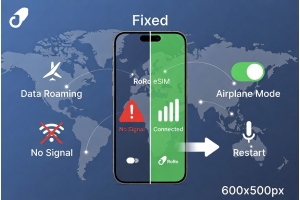
Troubleshooting & Reset
If you’re experiencing connectivity problems, sometimes removing the eSIM profile and reinstalling it can help. On iPhone, deleting the plan and scanning the QR code again usually restores it. On Android, you might use the “Remove” option in SIM management and then re‑add the profile.
Network Reset
For some Android devices, resetting the network settings (which includes Wi‑Fi, mobile, and Bluetooth) can clear network glitches and may remove eSIM profiles in the process. After the reset, you’ll need to reinstall the eSIM. Most phones will also run through normal setup processes to reconnect with local carriers and re‑activate your travel plan.
Reinstalling an eSIM
After deleting or resetting an eSIM, you can reinstall it — assuming your eSIM plan supports re‑installation via a QR code or direct activation link.
Steps to Reinstall (Typical Process)
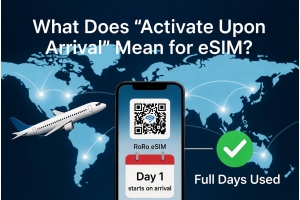
Locate your activation QR code or activation details from the provider — in this case, from RORO eSIM. When you purchase a RORO eSIM plan, you’ll receive a QR code by email or in the account dashboard.
On your phone:
iPhone: Go to Settings → Cellular (Mobile Data) → Add Cellular Plan.
Android: Go to Settings → Network & Internet → Mobile Network (or SIM Manager) → Add eSIM.
Scan the QR code or enter the details manually when prompted.
Follow the on‑screen instructions to complete the installation.
Reinstallation is typically simple, but it depends on whether your eSIM plan allows multiple installations. Some carriers and providers allow you to re‑scan and reinstall the same plan on the same or a new device; others might require issuing a new QR code or support assistance. If you’re unsure, contact the provider’s support team — for example, RORO’s customer service — for guidance.
Factory Reset and eSIM
If you perform a factory reset on your phone, some devices give you options regarding eSIM data. On many iPhones, you can choose to keep the eSIM plan while erasing other data, so you don’t need to reinstall afterward. If the eSIM is removed, you can reinstall it using your QR code or activation details.
Best Practices
Backup activation details: Store your QR codes or activation codes securely in email or cloud storage before removing a profile.
Contact support when needed: If you’re unsure whether your eSIM plan supports reinstallation, reach out to RORO eSIM’s support for help.
Avoid accidental deletion: Only delete an eSIM if you’re sure you no longer need it or plan to reinstall.