Visiting the United Kingdom — whether London, Manchester, Edinburgh, or beyond — staying connected is indispensable. For tourists, using an eSIM instead of a physical SIM card can save time, avoid roaming costs, and simplify connectivity. In 2025, this process is easier than ever — and with RORO eSIM, you can have data access in the UK in just a few minutes. Here’s a step-by-step guide on how to set up and use an eSIM in the UK.
Why Use an eSIM as a Tourist in the UK
No need to hunt local shops or airport kiosks — many tourist-focused SIMs require in-person purchases; eSIM lets you skip that hassle.
Fast & digital installation — with providers like RORO, you purchase and install online before departure, then activate on arrival.
Flexible plans — good for short city trips, multi-city stays, or longer visits; you can pick data size and validity to match your travel itinerary.
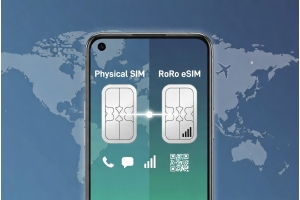
Dual-SIM convenience — if your phone supports it, you can keep your home number active (for messages/SMS) and use the eSIM for data while in the UK.
Avoid roaming fees and complications — you connect to local UK networks via eSIM, as a local data user, not a roaming user.
Step-by-Step: Setting Up RORO eSIM for UK Travel
Here’s how to get connected quickly and seamlessly:
1. Check Phone Compatibility
Make sure your smartphone supports eSIM. Modern iPhones and many Android/Samsung devices have eSIM capability.
Ensure the phone is unlocked to accept foreign or travel eSIM plans.
2. Buy a UK Plan from RORO
Go to RORO’s website and select a UK-travel plan that matches your stay duration — options typically range from short-stay data to longer 20–30-day plans.
Complete purchase. RORO will then provide a QR code or activation details for your eSIM.
3. Install the eSIM Profile Before You Travel
Either save the QR code in email or screenshot it — having it in advance helps if you travel to places without stable Wi-Fi.
On your phone:
- iPhone → Settings → Mobile Data (or Cellular) → Add Data Plan / Add eSIM → scan the RORO QR code (or enter activation manually).
- Android / Samsung → Settings → Network & Internet → SIM & Mobile Network → Add eSIM / Add Data Plan → scan or enter details manually.
Once installed, you can label the line (e.g., “UK-RORO”) to avoid confusion.
4. Activate Upon Arrival in the UK
When you land in the UK and connect to a UK network, enable the RORO eSIM line.
Enable data roaming/data usage for that line, especially if you’re coming from abroad.
For dual-SIM phones: keep your home number on the physical SIM, and set the RORO eSIM as “Mobile Data” line for browsing, apps, navigation, etc.
5. Test the Connection and Use
Open a browser or map app to confirm data connection works.
If no signal — try toggling Airplane Mode on/off or re-select network automatically.
Once connected, you can use data, navigation, streaming, ride-hailing, translations, etc., right away — no physical SIM hassles.
What UK Plans from RORO Typically Offer
Short-stay plans (ideal for a few days in London or Manchester) — good for maps, rides, communications, light browsing.
Longer-stay or heavier-data plans — suitable if you stay multiple weeks, work remotely, use hotspot, or stream frequently.
Flexibility to top-up data if you run out, or choose medium/large data packages upfront depending on trip length.
Coverage via major UK carriers (4G/5G) across cities and many regions, giving reliable connectivity.
Tips and Considerations
Always install before travel, activate on arrival — this ensures you get the full plan validity starting in the UK.
If you use hotspot / tethering, make sure your chosen plan supports it — helpful if traveling with multiple devices or sharing with companions.
Monitor data usage if you’re on a fixed-data plan to avoid running out mid-trip; consider topping up if needed.
Keep your QR code/activation info backed up (email or screenshot) — useful if you lose internet or switch phones.
If your phone doesn’t support eSIM, or is locked, check compatibility or use alternative solutions (local SIM, pocket Wi-Fi).