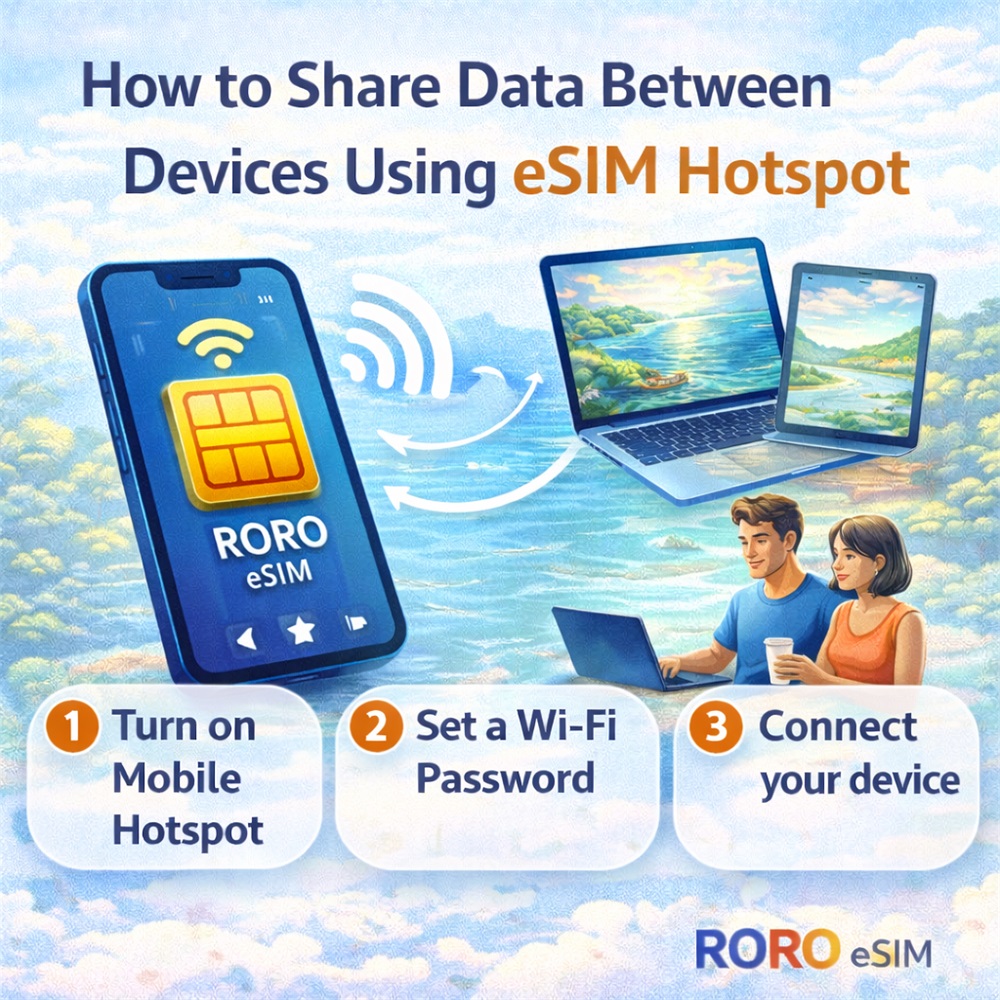
Modern travel often means juggling multiple devices — a smartphone, tablet, laptop, or even a travel companion’s phone. When you’re on the go, especially abroad, keeping all of these connected without paying expensive roaming fees can be challenging. Fortunately, with an eSIM data plan like RORO eSIM, you can easily share your mobile data between devices using your phone’s hotspot feature. This guide explains how to set up and use your eSIM hotspot so you stay connected seamlessly on your trip.
What Is a Hotspot and Why It Matters
A hotspot turns your phone into a mini-Wi-Fi router. This allows other devices — such as tablets, laptops, or your travel partner’s phone — to connect to the internet through your phone’s mobile data connection. If you’re using a travel eSIM like RORO, this means sharing your eSIM data with all your devices without needing separate SIMs or local Wi-Fi.
Travelers appreciate hotspot sharing because it:
Reduces the need for extra SIM cards or devices
Keeps multiple gadgets online at once
Works anywhere you have mobile data
Supports remote work, navigation, messaging, and streaming
Step-by-Step: Using Hotspot on Your Smartphone
Here’s how to share eSIM data between devices using your phone’s hotspot:
For iPhone (iOS)
Install Your eSIM:
First, make sure your RORO eSIM plan is installed and active. You can do this before departure so you’re connected as soon as you land.
Go to Settings:
Open Settings → Personal Hotspot.
If you don’t see this option immediately, tap Cellular (or Mobile Data) and then Personal Hotspot.
Turn On Hotspot:
Toggle Allow Others to Join or Share Your Internet Connection.
Your phone will generate a Wi-Fi network name and password.
Connect Other Devices:
On your laptop, tablet, or another phone, search for Wi-Fi networks and select your hosted network. Enter the password to connect.
Your device will now share your eSIM’s mobile data with connected devices and let you browse, stream, or work wherever you are.
For Android Phones
Install Your eSIM:
Ensure your RORO eSIM data plan is active.
Open Settings:
Go to Settings → Network & Internet (or Connections → Hotspot & Tethering depending on your phone).
Enable Wi-Fi Hotspot:
Tap Wi-Fi Hotspot or Mobile Hotspot and turn it On.
You’ll see a network name and password — you can customize these.
Connect Other Devices:
On your other gadget, find your hotspot’s Wi-Fi name and enter the password to connect.
Once connected, the device uses your phone’s eSIM mobile data to access the internet.
Tips for Effective Hotspot Sharing
1. Check Your Plan’s Hotspot Policies
Not all data plans allow unlimited hotspot sharing. For example, RORO eSIM’s unlimited-style plans typically include hotspot access with limits — often up to 500 MB per day or with a fair-use daily high-speed threshold.
If you plan to share heavily (e.g., video calls or streaming on a laptop), consider a fixed data plan with a larger total allowance, as these generally allow more generous hotspot use.
2. Monitor Data Usage
Sharing data across devices can quickly eat into your eSIM data allowance. Most phones let you view how much data each connected device uses — check this in your phone’s hotspot or data usage settings.
3. Secure Your Hotspot
Always set a strong password for your hotspot so strangers don’t connect without your permission. This is essential when traveling in crowded places like airports, cafes, or public transit.
4. Consider Battery Life
Using your phone as a hotspot can drain its battery faster than usual. Carry a portable charger/power bank if you plan to share data for long periods.
When Hotspot Sharing Is Most Useful
Hotspot sharing with eSIM data is great when:
You’re working remotely and need to connect a laptop
You’re traveling with a friend or family member
You’re in a location without stable public Wi-Fi
You’re on the move (buses, trains, sightseeing)
With travel eSIMs like RORO eSIM, you avoid the hassle of separate data plans per device and save money compared to renting multiple SIMs or devices.