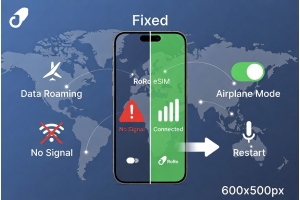
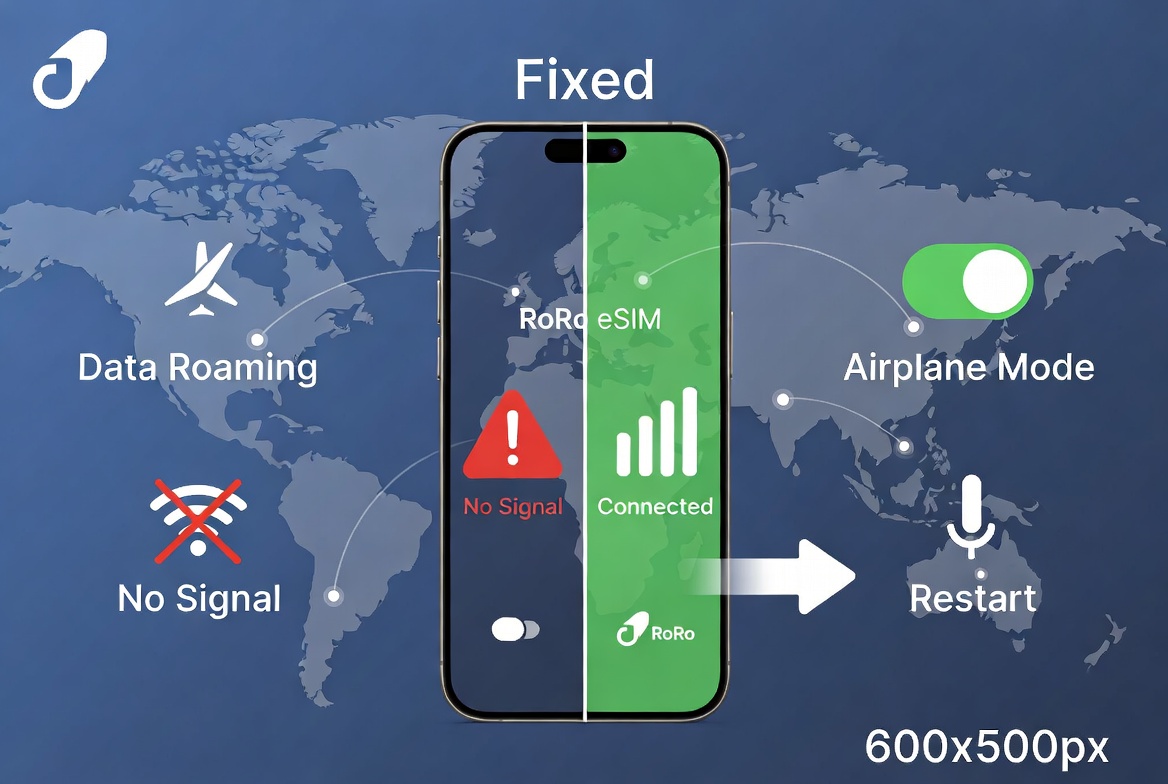
Seeing “No Signal” or “No Service” on your eSIM can be frustrating, especially when you’re traveling abroad. The good news is that most eSIM connectivity issues are easy to fix. RoRo eSIM (https://roroesim.com/) provides strong coverage in over 200 countries, but proper setup is essential. This guide walks you through the most common reasons and solutions.Common Reasons for eSIM No Signal
- Data Roaming Not Enabled
This is by far the most frequent cause. Many travelers forget to turn on Data Roaming specifically for the eSIM line. - eSIM Not Set as Primary Data Line
Your phone may still be trying to use your physical SIM for data. - Airplane Mode or Wrong Network Selection
The phone might be stuck in Airplane Mode or locked to an unsupported network. - Installation or Activation Issues
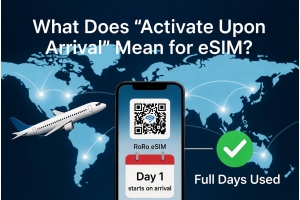
The eSIM profile may not have been installed correctly, or you turned it on before arrival (especially important with RoRo’s delayed activation). - Outdated Software or Carrier Settings
Old iOS/Android versions or outdated carrier settings can cause compatibility problems. - Coverage Area
You may be in a remote location with weak signal from partner networks.
- Go to Settings > Cellular (or Mobile Data).
- Tap your RoRo eSIM line and ensure it is turned ON.
- Turn on Data Roaming for the RoRo line.
- Set RoRo eSIM as the Default Voice Line (for calls) or at least as Primary Data Line.
- Toggle Airplane Mode on for 15 seconds, then off.
- Restart your iPhone.
- Go to Settings > Network & Internet > SIMs.
- Make sure the RoRo eSIM is enabled.
- Enable Data Roaming for the RoRo line.
- Set RoRo as the preferred data SIM.
- Toggle Airplane Mode and restart the phone.
- Update your phone’s OS and carrier settings.
- Manually search for networks and select a supported operator.
- Check data usage in your RoRo account to ensure the plan is active.
- Check your RoRo account dashboard for plan status.
- Contact RoRo’s 24/7 customer support via live chat or WhatsApp. They respond quickly and can check your profile on their end.
- Install the eSIM while on stable Wi-Fi before departure.
- Do not enable Data Roaming until you arrive.
- Take a screenshot of your QR code and activation details.
- Monitor data usage regularly through the RoRo dashboard.