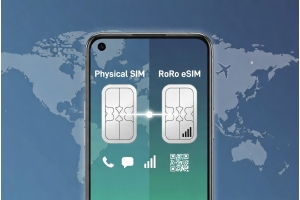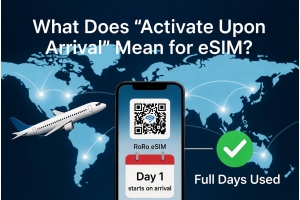
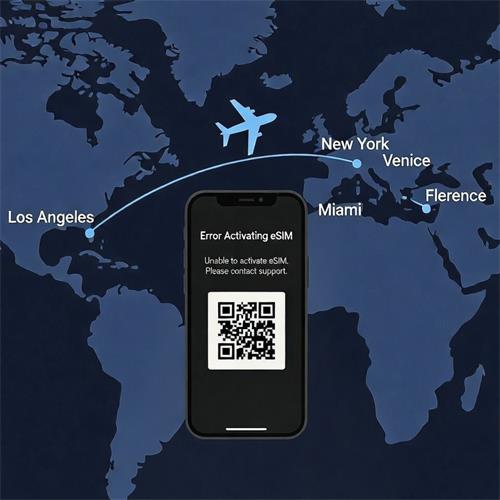
RoRo eSIM offers reliable, data-only connectivity in over 200 countries, making it a go-to for travelers avoiding high roaming fees. While activation is usually seamless—install via QR code before travel, activate on arrival—occasional issues arise due to device settings, network conditions, or setup steps. RoRo provides 24/7 support and FAQs addressing common problems like installation failures or activation delays. Most errors resolve with simple troubleshooting, ensuring quick fixes without losing your plan.Common eSIM Activation Errors and FixesCannot Install the eSIM (QR Code Not Scanning or "Invalid QR Code")
This happens if Wi-Fi is unstable or the code is misread. Use a strong, stable Wi-Fi connection (not mobile data).
Ensure your device supports eSIM—dial *#06# to check for EID.
Try manual entry: In Settings > Cellular (iPhone) or Network & Internet > Mobile Network (Android), select "Enter Details Manually" and input SM-DP+ address/activation code from your RoRo "My SIMs" dashboard.
Restart your phone and retry. If persistent, delete any partial profiles and reinstall.
Activation Failed or "Unable to Activate eSIM" Message
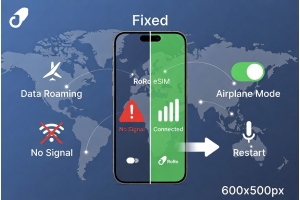
Often due to airplane mode, VPN interference, or weak signal. Turn off airplane mode and disable any VPN—VPNs block server communication needed for activation.
Connect to reliable Wi-Fi during initial setup.
Restart your device; many users report this resolves glitches.
For RoRo, ensure the plan is purchased and details are correct—check "My SIMs" for status.
No Data/Service After Activation ("No Service" or Stuck on "Activating")
The most frequent post-activation issue with RoRo. Enable Data Roaming for the RoRo eSIM line (Settings > Cellular > RoRo eSIM > Data Roaming ON). This is essential as RoRo uses partner networks.
Set RoRo as your primary data line if using dual SIM.
Toggle airplane mode on/off for 10-15 seconds to force network reconnection.
Manually select a network if auto doesn't connect (Settings > Cellular > Network Selection).
Wait 1-5 minutes after enabling roaming—activation can take time on first connect.
Plan Not Starting or Data Not Working Despite Connection Verify in RoRo app/dashboard that validity has begun (starts on first use in destination).
Restart phone or toggle the eSIM off/on in settings.
If data drops, reinstall the profile (delete from old phone if transferring, then re-add via QR). RoRo allows re-installation without losing data.
Other Quick Tips Update your phone's OS for best eSIM compatibility.
Avoid deleting the eSIM prematurely—test connectivity first.
For persistent issues, contact RoRo's 24/7 support via live chat, email, or WhatsApp—provide purchase details and screenshots.
RoRo's design (install early, activate on arrival) minimizes errors, and most fixes take under 5 minutes. With these steps, enjoy instant high-speed data for maps, rides, and sharing without airport hassles. Safe travels!